Importing variable products in WooCommerce using a CSV file is the most efficient way to manage large product catalogs with multiple variations like size, color, price, and stock. Instead of manually creating each product and variation, WP Ultimate CSV Importer allows store owners to bulk upload, update, and manage products in minutes.
This step-by-step guide explains how to import WooCommerce variable products using CSV, covering everything from CSV file structure to common import issues. Whether you’re a non-technical store owner or a developer managing a large WooCommerce store, this guide will help you streamline product management.
Key Takeaways :
- Variable products depend entirely on the correct parent-child structure.
When importing via CSV, each variation must be linked to its parent product using the correct Parent SKU. Even a small mismatch can prevent variations from appearing in WooCommerce. - A well-structured CSV file determines import success.
Defining product type, attributes, SKUs, pricing, stock status, and images clearly in the CSV helps WooCommerce generate variable products and variations without conflicts. - Attributes drive variation creation in WooCommerce.
Consistent attribute names and values (such as Size and Color) across parent products and variations are essential for WooCommerce to create and display all variations correctly. - WP Ultimate CSV Importer simplifies importing complex variations.
The plugin allows importing parent products and variations together, offers visual field mapping, and supports large CSV files with thousands of variable products. - Accurate field mapping prevents broken variations.
Properly mapping WordPress core fields, product meta fields, and product attributes ensures that prices, stock, images, and variations are assigned correctly during import. - Following best practices reduces import errors and rework.
Testing with small CSV files, using unique SKUs, validating data, and preparing images in advance helps ensure smooth, error-free variable product imports.
Overview of variable products CSV Import
WP Ultimate CSV Importer for variable products allows you to upload a parent product and its variations in one structured file. For example, a T-shirt product can be imported with multiple sizes and color variations, each having its own price and stock.
Manually adding such products is time-consuming and prone to errors. CSV import eliminates this by letting you define all product data in a spreadsheet and upload it in one go.
CSV import is especially useful when:
- You sell products with multiple variations, like size, color, or material
- You need bulk price updates during sales or promotions
- You migrate an existing product catalog to WooCommerce
- You plan long-term catalog scalability
Although WooCommerce supports native CSV imports, the WP Ultimate CSV importer plugin simplifies advanced variable product imports with automation and scheduled updates.
Variable Products Explanation
Variable products in WooCommerce are products that offer multiple options or choices based on attributes such as size, color, weight, material, or style. Instead of creating separate products for each option, WooCommerce allows you to group all variations under a single product listing.
Each variation can have its own price, SKU, stock status, weight, and image, giving store owners full control over inventory and pricing at the variation level.
Common examples of variable products include:
- A T-shirt available in multiple sizes (S, M, L) and colors (Red, Blue)
- Shoes are offered in different sizes and materials
- Electronics with storage or color options
In WooCommerce, a variable product is made up of two key components:
- Parent product – The main product page that customers see
- Variations – Individual combinations of attributes created under the parent product
Understanding this parent–child relationship is crucial before importing variable products using CSV. When the relationship is structured correctly, WooCommerce can automatically generate variations, display them on the product page, and manage pricing and stock accurately during the import process.
WP Ultimate CSV Importer for WooCommerce Variable Products
WP Ultimate CSV Importer is a powerful WooCommerce import export plugin that simplifies bulk product uploads. It allows store owners to import WooCommerce simple products, variable products, variations, images, categories, attributes, and even custom fields using a single CSV file.
Why WP Ultimate CSV Importer is ideal for variable products:
- Simple and intuitive field-mapping screen :
The plugin offers an easy-to-use field mapping interface that allows you to match CSV columns with WooCommerce product fields accurately. This visual mapping process minimizes confusion and reduces the chances of incorrect data placement during import. - Supports importing parent products and variations together :
WP Ultimate CSV Importer allows you to import both parent variable products and their variations in a single CSV file. This ensures that product relationships are created correctly without requiring manual setup after import. - Efficiently handles thousands of products in one import :
Designed for performance, the plugin can process large CSV files containing thousands of products without slowing down your website. This makes it ideal for WooCommerce stores with large or growing product catalogs. - Automates imports through scheduled or cron-based runs :
The importer supports scheduled and automated imports using cron jobs. This feature is especially useful for stores that frequently update product data, prices, or stock levels from external systems. - Works perfectly with WooCommerce product data structure :
WP Ultimate CSV Importer is fully compatible with WooCommerce’s product architecture, including attributes, variations, pricing, stock, and images. This ensures imported data follows WooCommerce standards and functions correctly. - Why this matters for large WooCommerce stores :
For store owners managing large catalogs, this plugin saves significant time, reduces manual errors, and maintains consistent product data across all variable product imports, making long-term product management easier and more reliable.
For store owners managing large catalogs, this plugin saves time, reduces errors, and ensures consistency across all variable product imports.
Things to Prepare Before Variable Product Import
Before importing variable products into WooCommerce using a CSV file, a few essential checks must be completed:
- Install and activate WooCommerce on your WordPress site :
Before importing any products, ensure WooCommerce is properly installed and activated. Complete the basic store setup, including currency, location, and product settings, so the imported variable products align correctly with your store configuration. - Install WP Ultimate CSV Importer for handling CSV uploads :
WP Ultimate CSV Importer is required to manage complex variable product imports. After installing and activating the plugin, verify that it supports WooCommerce products and variations to ensure smooth CSV processing. - Decide and finalize product attributes like size, color, or style :
Product attributes play a crucial role in variable products. Finalize attributes such as size, color, or material in advance, as these will be used to generate variations accurately during the CSV import. - Upload product images or prepare valid external image URLs :
Make sure all product images are uploaded to the WordPress Media Library or available as valid external URLs. Proper image preparation ensures that both parent products and variations display images correctly after import. - Create a properly formatted CSV file with accurate product data :
Prepare a clean and well-structured CSV file containing correct product names, SKUs, prices, attributes, and variation details. Accurate formatting reduces import errors and ensures WooCommerce recognizes parent and variation relationships.
Completing these steps in advance makes the import process faster and reduces the chances of missing variations or broken products.
CSV File Structure for Importing Variable Products
A properly formatted CSV file structure is the backbone of importing WooCommerce variable products using CSV. WooCommerce relies on specific columns to identify parent products, map variations, and assign attributes during the import process.
Each row in the CSV must clearly define whether it is a variable product or a variation and how it relates to the parent product.
Key columns required for WooCommerce variable product import include:
- post_type (product / product_variation)
- post_title for product identification
- sku as a unique product reference
- parent_sku to connect variations to the main product
- product_type to differentiate variable and variation products
- attributes such as size, color, or material
- regular_price and sale_price for variation-level pricing
- stock_status for inventory control
- image URL for product visuals
Using a well-structured CSV helps WooCommerce correctly generate variable products, assign variations, and avoid import conflicts.
To understand the correct CSV structure for importing WooCommerce variable products, check this guide. It explains how to format parent products, variations, and required columns to ensure a smooth import process 👉https://www.smackcoders.com/documentation/wp-ultimate-csv-importer-pro/how-to-import-variable-products-in-woocommerce
Step-by-Step Guide to Import Variable Products Using CSV
Step – 1 Prepare the Import File for WooCommerce Variable Products
Before importing variable products into WooCommerce, you need to create a well-organized import file. WP Ultimate CSV Importer supports multiple file formats, such as CSV, XML, and Excel, so you can work with the format that suits you best.
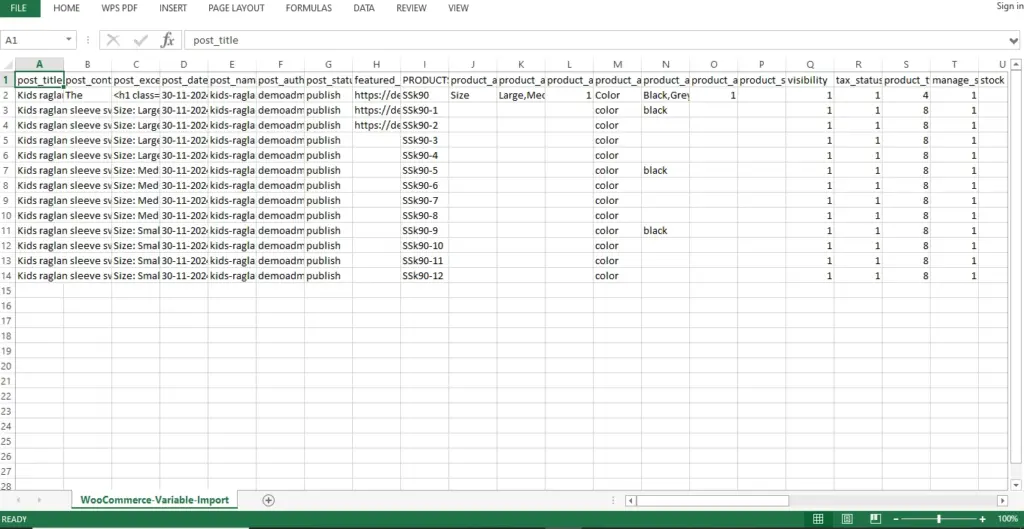
The import file should include both parent products and their variations, and there must be a clear link between them. To correctly associate each variation with its parent product, the Parent SKU field is mandatory.
Important elements to include in the import file:
- Separate rows for parent products and their variations
- Parent SKU column to link variations with the correct parent product
- Product attributes added in separate columns
- Accurate product type values for both parent products and variations
Sample attribute setup:
- Product Attribute Name 1: Color
- Product Attribute Value 1: Red | Blue | Green
Attribute visibility options:
- 1 – Enabled
- 2 – Disabled
Product type values:
- 4 – Variable product (Parent)
- 8 – Product variation
To better understand the file structure, you can download a sample CSV file and try importing it using our trial WordPress environment. This helps you practice and verify the data format before performing the actual import.
Step – 2: Upload Your Import File
After preparing the import file, install and activate WP Ultimate CSV Importer Pro on your WordPress website. If the plugin is not installed yet, you can download it from the official WP Ultimate CSV Importer website.
Steps to upload the import file:
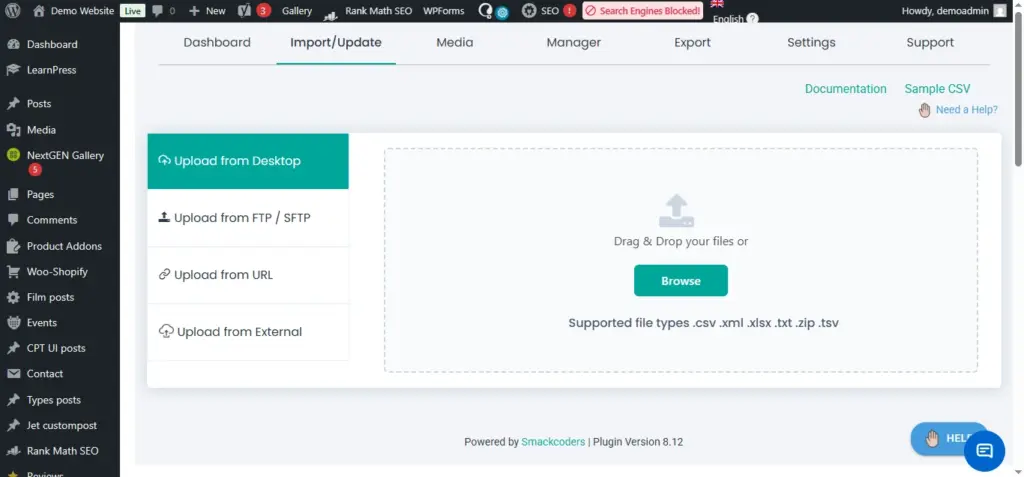
- Navigate to WP Ultimate CSV Importer Pro → Import/Update
- Select a preferred file upload method:
- Upload from Desktop
- Upload via FTP / SFTP
- Upload from a URL
- Select File from Server
- Click Browse, choose the prepared import file, and upload it.
Once the file is uploaded, decide how the data should be processed:
- Fresh Import – Use this option to add new variable products
- Update Content – Choose this option to modify existing variable products
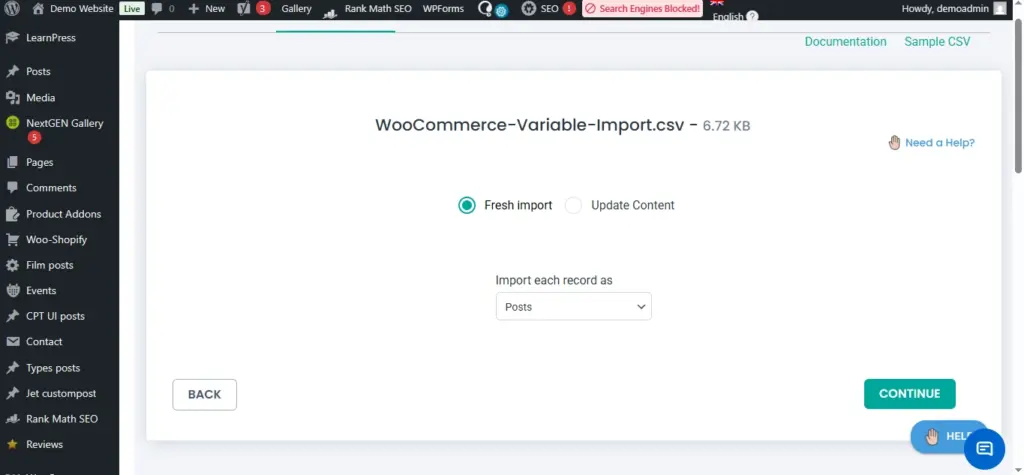
In the next step, select WooCommerce Product as the post type and click Continue to proceed with the import process.
Step – 3 Map Import File Fields with WooCommerce Fields
Field mapping helps WooCommerce understand how the columns in your import file relate to product fields. When the column headers in your file match WooCommerce field names, WP Ultimate CSV Importer will automatically map them for you.
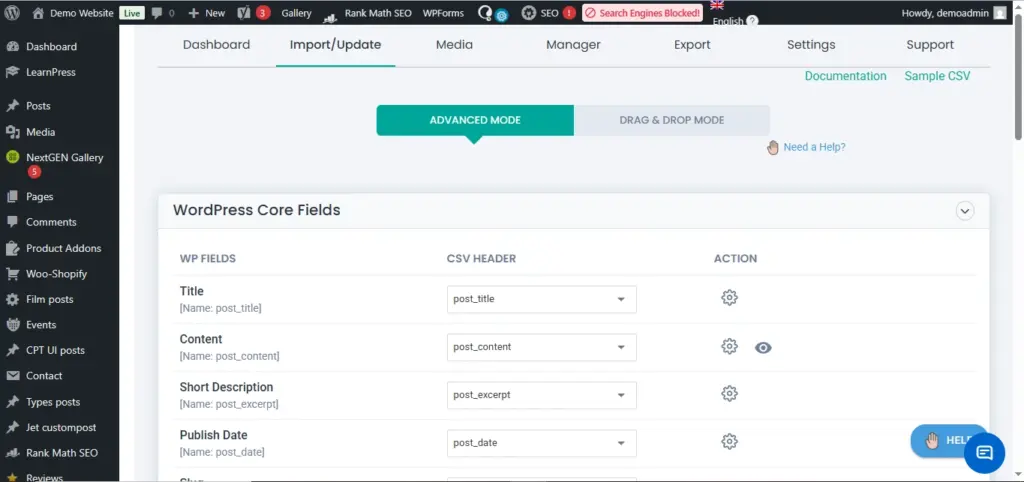
If automatic mapping does not apply, you can manually connect the fields using one of the following options.
Available mapping modes:
- Advanced Mode – Manually choose WooCommerce fields from the dropdown list
- Drag & Drop Mode – Drag columns from the import file and drop them into the corresponding WooCommerce fields
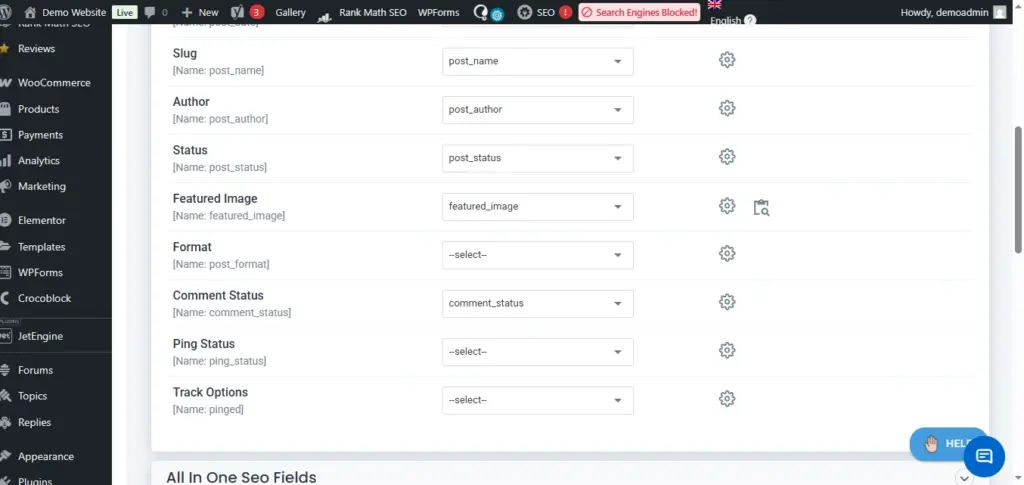
Make sure all required fields are correctly mapped under these sections:
- WordPress Core Fields
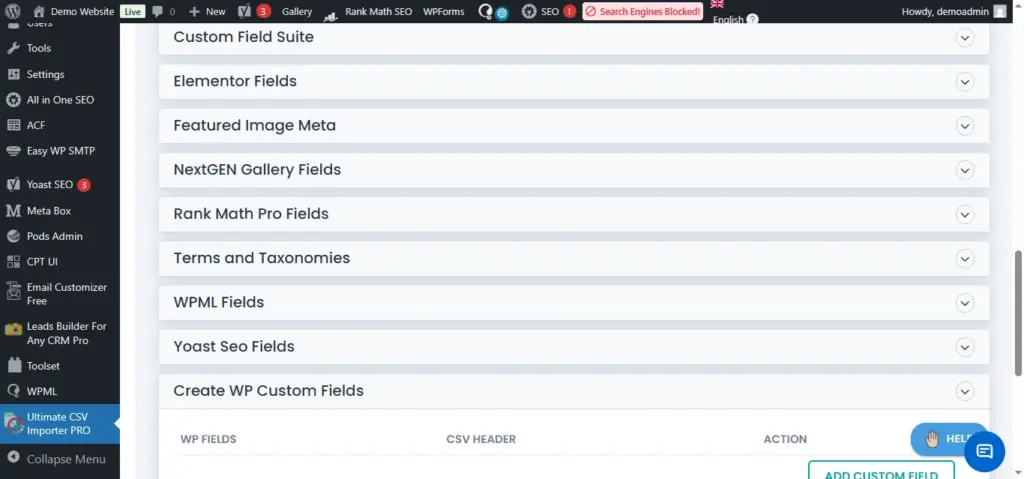
- Product Meta Fields
- Product Attributes
Proper field mapping is essential to avoid errors while importing variable products.
Mapping Product Attributes
In the Product Attributes section, attributes appear as separate blocks such as Productive[1], Productive[2], and so on. Each block represents a single attribute.
Every attribute block contains:
- Product Attribute Name (for example: Color, Size)
- Product Attribute Value (for example: Red, Blue, Green)
- Product Attribute Visible (to display or hide the attribute on the product page)
Example case:
If one product has three attributes (Color, Size, Material) and another product has only two attributes (Color, Size), you should still create three attribute blocks.
You can then:
- Leave unused attribute blocks empty, or
- Remove extra attribute blocks using the delete option
Keeping attribute mapping consistent across all products ensures a smooth and error-free import process.
STEP – 4: Save Mapping Template
After completing the field and attribute mapping, scroll to the bottom of the page.
- Enter a unique name in the Save this mapping as field
- Click Continue
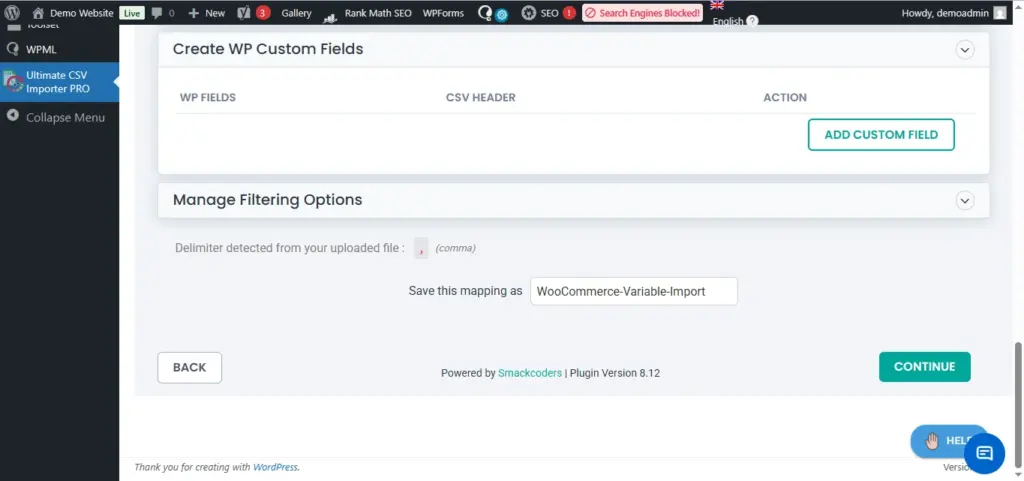
This saves your configuration as a reusable template. You can access saved templates anytime from Manager → Templates, which helps speed up future imports.
Step – 5: Configure Media Handling and Import Settings
Media Handling Settings
Configure how product images should be handled during import:
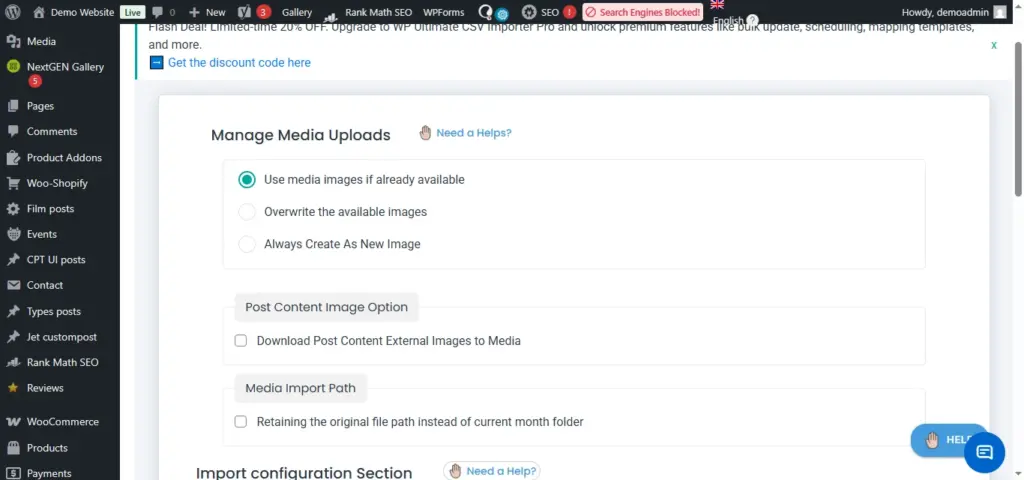
- Use media images if already available (default)
- Overwrite existing images
- Always create new images
You can also:
- Enable downloading external image URLs into the media library
- Retain original file paths instead of creating month-based folders
Import Configuration Options
Fine-tune the import behavior using these options:
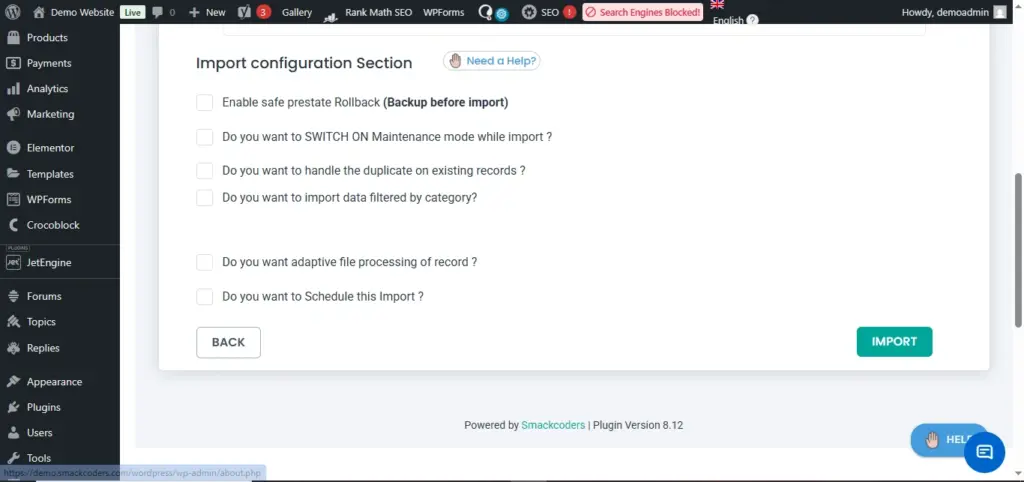
- Safe Prestate Rollback – Creates a backup before import
- Maintenance Mode – Displays a maintenance message during import
- Duplicate Handling – Prevents duplicate products using selected fields
- Category-based Import – Import only selected categories
- Adaptive File Processing – Process records in chunks for large files
- Scheduled Import – Automate imports using cron schedules
Step – 6: Finalize and Verify the Import
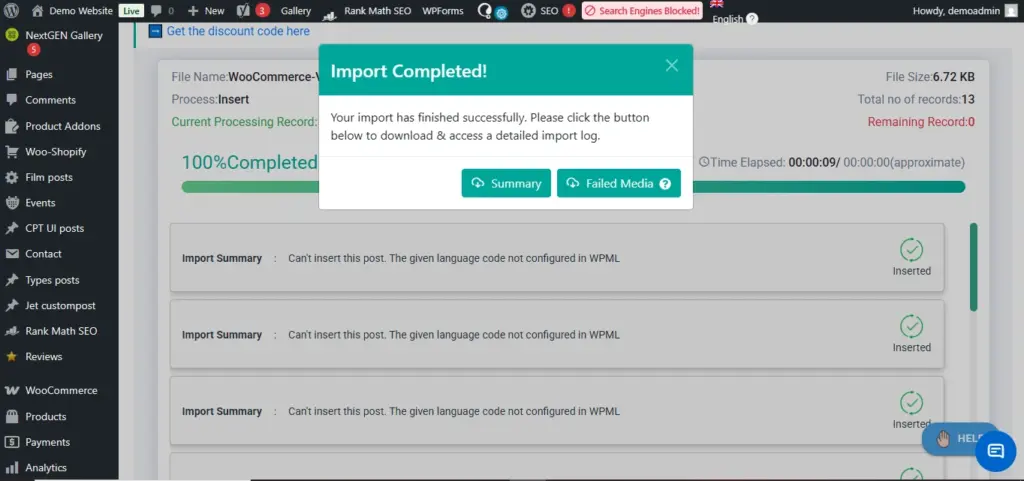
Once the import reaches 100% completion, an Import Completed message will appear.
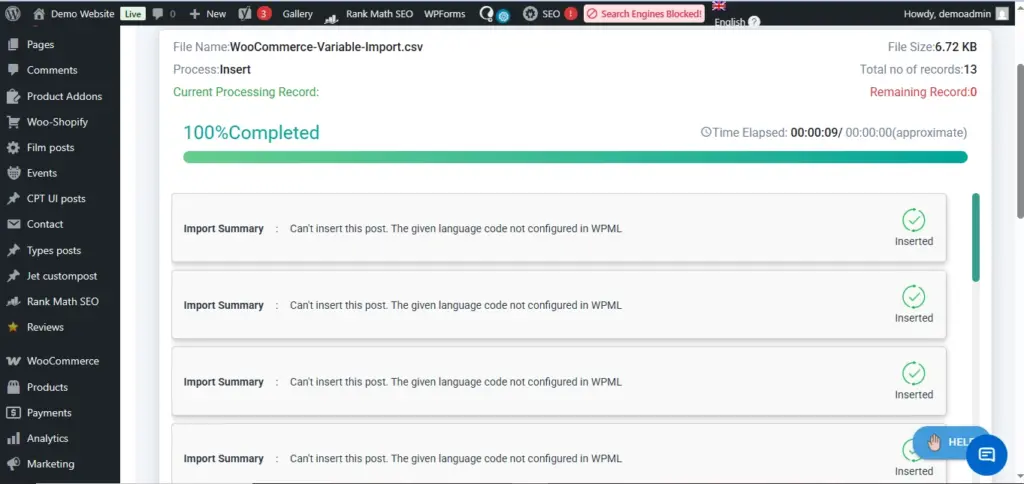
Verification steps:
- View Summary Logs to check imported and skipped records
- Review Failed Media to identify image import issues
- Open Import Logs to see the detailed status for each record
- Use the provided links to view or edit products directly
You can also verify imported variable products manually by navigating to:
WooCommerce → Products
Your variable products and their variations should now be visible and correctly linked.
Common Issues While Importing Variable Products
Common errors during WooCommerce variable product import using CSV usually occur due to incorrect CSV structure, improper field mapping, or inconsistent product data. Since variable products depend on a parent–child relationship, even small mistakes can prevent variations from displaying correctly.
Most of these issues can be identified and resolved by reviewing the CSV file and import settings carefully.
How to Fix Common Import Errors
To ensure a successful import, check the following areas before re-running the process:
- Verify parent–child relationships
Make sure every variation row is correctly linked to its parent product using the correct parent SKU. If the parent SKU is missing or incorrect, WooCommerce will fail to associate variations with the main product. - Ensure all SKUs are unique.
Each product and variation must have a unique SKU. Duplicate SKUs often cause products to overwrite each other or fail during import. - Check attribute consistency
Attribute names and values (such as size or color) must be consistent across all variations. Even small differences in spelling or capitalization can prevent WooCommerce from generating variations properly. - Validate the CSV file before import.
Always validate the CSV file format to ensure required columns are present and no mandatory fields are empty. Using a CSV validation tool or testing with a small dataset can help catch errors early.
By fixing these common issues, you can significantly reduce import failures and ensure that WooCommerce correctly displays variable products and their variations.
Best Practices for Variable Product CSV Import
Following best practices is essential for a smooth and error-free WooCommerce variable product import using CSV. Since variable products involve multiple attributes and variations, even small data inconsistencies can lead to broken product structures or failed imports.
By applying the practices below, you can improve import accuracy, reduce errors, and scale your WooCommerce product catalog efficiently.
Proven Best Practices to Follow
- Always test with a small CSV file first.
Before importing hundreds of products, start with a small test CSV containing one variable product and a few variations. This helps you identify mapping or formatting issues without affecting your entire store. - Maintain consistent attribute naming.
Use the same attribute names and values across all products and variations. For example, always use “Size” instead of mixing “size,” “Size,” or “Sizes,” as inconsistent naming can prevent WooCommerce from generating variations. - Backup your WooCommerce site before import
Always create a full backup of your database and media files before running a CSV import. If anything goes wrong, a backup allows you to quickly restore your store without data loss. - Use unique SKUs for each variation.
Each product and variation must have a unique SKU. Duplicate SKUs can cause products to overwrite each other or fail during import, especially when updating existing WooCommerce products. - Validate CSV files before upload.
Review your CSV file for missing required fields, incorrect formats, or extra spaces. Validating the CSV file ensures WooCommerce can read and process the data without errors. - Keep images accessible and optimized.
Ensure all image URLs used in the CSV are publicly accessible and correctly formatted. Optimized images improve import success and enhance product page performance. - Document your import structure.
Maintain a standard CSV template for future imports. This ensures consistency and saves time when updating or adding new variable products.
By following these best practices, you can confidently import WooCommerce variable products using CSV, minimize errors, and build a scalable product management workflow.
Summary
Importing variable products in WooCommerce using CSV is one of the most efficient and scalable methods for managing complex product catalogs. Instead of manually creating parent products and variations one by one, a structured CSV import allows store owners to bulk upload, update, and organize products with greater accuracy and consistency.
With a properly formatted CSV file and a reliable tool like WP Ultimate CSV Importer, you can seamlessly handle variable products, attributes, variations, pricing, stock, and images – all in a single import process. This approach not only saves time but also minimizes human errors that often occur during manual product management.
By following this step-by-step guide, from CSV preparation and field mapping to import configuration and validation, both beginners and experienced WooCommerce users can confidently import WooCommerce variable products using CSV files. Whether you are launching a new store or scaling an existing one, CSV-based product import ensures long-term efficiency, better data control, and a smoother WooCommerce product management workflow.
Frequently Asked Questions (FAQs)
1. What are Variable Products?
Variable products are WooCommerce products that have multiple variations based on attributes like size, color, or material. Each variation can have unique pricing, stock, and images.
2. How to import variable products in WooCommerce for free using a CSV file?
You can use WooCommerce’s built-in CSV importer for basic imports. However, advanced features like variation mapping and updates work better with plugins like WP Ultimate CSV Importer.
3. Can I import variable products with variations and images using Google Sheets CSV?
Yes, you can import WooCommerce variable products with variations and images using a CSV file created in Google Sheets. To include images, simply add the u003cstrongu003epublic image URLsu003c/strongu003e in the image column of your Google Sheets CSV. Make sure the images are hosted on an accessible server or media library so WooCommerce can download them during the import process.u003cbru003eWP Ultimate CSV Importer fully supports u003cstrongu003eGoogle Sheets CSV filesu003c/strongu003e, allowing you to upload, map fields, and import variable products with attributes, variations, pricing, stock, and images seamlessly. This makes Google Sheets an ideal tool for managing and updating large WooCommerce product catalogs efficiently.
4. Can I import parent and variation products in a single CSV file?
Yes, WooCommerce allows you to import both u003cstrongu003eparent (variable) productsu003c/strongu003e and their u003cstrongu003evariationsu003c/strongu003e within a single CSV file. This is the recommended approach for bulk imports because it keeps all related product data organized in one place.u003cbru003eIn the CSV file, the parent product is defined as a u003cstrongu003evariable productu003c/strongu003e, while each variation is added as a separate row. Variations are linked to the parent product by using the u003cstrongu003eparent SKUu003c/strongu003e field. As long as the parent SKU is correctly mapped, WooCommerce will automatically associate all variations with the corresponding parent product during import.
5. Do I need to manually create attributes before importing variable products?
No, you do not need to manually create attributes before importing variable products into WooCommerce. u003cstrongu003eWP Ultimate CSV Importer can automatically create product attributes during the import processu003c/strongu003e, as long as the attribute columns are correctly defined and mapped in the CSV file.u003cbru003eWhile mapping fields, you can assign CSV columns to WooCommerce attributes such as size, color, or material. The plugin will automatically generate these attributes and apply them to both the parent product and its variations.
6. Does WP Ultimate CSV Importer support bulk variable product import?
Yes, WP Ultimate CSV Importer supports bulk importing thousands of WooCommerce variable products efficiently. It can handle parent products, variations, attributes, pricing, stock, and images in a single CSV file. The plugin maintains proper parent–child relationships during import, even for large catalogs. It also reduces manual effort and import errors when managing bulk product data. This makes it ideal for scaling WooCommerce stores and handling frequent product updates.
7. Can I update existing variable products using CSV?
Yes, you can update existing WooCommerce variable products using a CSV file. By matching products using a unique u003cstrongu003eSKU or product IDu003c/strongu003e, you can update prices, stock status, images, and attributes without creating duplicates. WP Ultimate CSV Importer allows selective updates, so only required fields are modified. This makes bulk product updates faster and more reliable for large WooCommerce catalogs.
8. How can I automatically import variable products into WooCommerce?
You can automatically import WooCommerce variable products by using scheduled CSV uploads or cron jobs supported by WP Ultimate CSV Importer. This allows products, variations, prices, and stock data to be updated at regular intervals. Automated imports are useful for syncing data from suppliers or external systems. It reduces manual effort and ensures your WooCommerce catalog stays up to date.
9. Why are my variations not showing after CSV import?
Variations may not appear after a CSV import if the u003cstrongu003eparent SKU is missing or incorrectu003c/strongu003e. Incorrect attribute mapping or inconsistent attribute names and values can also prevent WooCommerce from generating variations. Duplicate SKUs or empty required fields may cause the import to fail silently. Reviewing the CSV structure and field mapping usually resolves this issue.
10. Why are variable products not imported in WooCommerce?
Variable products may fail to import in WooCommerce due to an u003cstrongu003einvalid CSV file formatu003c/strongu003e or missing required columns. Duplicate SKUs can cause products to overwrite or skip during import. Incorrect product type settings (not marked as variable) may also stop the import. Field mapping errors or inconsistent attributes can prevent WooCommerce from processing the products correctly.
If you manage a growing WooCommerce store, importing variable products using CSV is the smartest way to save time and scale efficiently. Try WP Ultimate CSV Importer to automate product uploads, updates, and large catalog management – or consult WooCommerce experts for seamless bulk imports.
If you have any questions or need help during the setup, the Smackcoders support team is here to help. Feel free to contact [email protected] for expert assistance.