

Table of Contents
WordPress stores Advanced Custom Fields data in the database, but getting that data in and out of your site in bulk is not something ACF handles on its own. Whether you are migrating a site, syncing product data across platforms, or updating hundreds of custom field values at once, you need a reliable way to import and export Advanced Custom Fields (ACF) data without touching each record manually.
The fastest way to do this is through a CSV, XML, or Excel file using WP Ultimate CSV Importer. It maps directly to your ACF field groups, handles complex field types like Repeater, Group, and Flexible Content, and works across posts, pages, WooCommerce products, and custom post types. You can run a one-time import, schedule recurring updates, or export your entire ACF dataset with advanced filters in just a few steps.
This guide covers everything. How to import ACF fields from a CSV file, how to export ACF data alongside your WordPress content, how to export ACF field group configurations, and how the two leading import tools compare so you can make the right call for your setup.
Export/Import of Advanced Custom Fields data from CSV:
ACF stores your custom field data in WordPress’s database, but the plugin itself has no built-in tool for bulk importing or exporting that data. To move ACF field values in and out of WordPress at scale, across posts, pages, WooCommerce products, or custom post types, you need WP Ultimate CSV Importer.
The plugin maps directly to your ACF field groups and handles every field type including Repeater, Group, Flexible Content, and Google Map. You can import new records, update existing ones, or export your full ACF dataset with advanced filters, all without touching a single record manually.
Before you start: Make sure your ACF field groups are already created and assigned to the correct post type inside the ACF plugin. The importer maps to existing fields, it does not create field groups during import.
Upon activation, go to WP Ultimate CSV Importer → Import/Update. You will be prompted to upload your CSV file in UTF-8 format. The plugin reads your column headers and maps them to your ACF fields automatically. The first row of your file must contain column names, there are no naming restrictions for ACF field headers.
You can download the sample ACF CSV file for reference and open it in Microsoft Office, LibreOffice Calc, or Google Sheets. When saving your CSV, use a comma as the column separator and set the text delimiter to double quotes.
Import ACF Fields in WordPress from CSV:
Before importing your CSV file you have to create a custom post type in the ACF plugin. In the ACF dashboard, click on Create New where you have to create a custom template based on your needs in ACF. You have to assign the template for the post, page, or any other field. This allows ACF to get mapped with WP header fields.
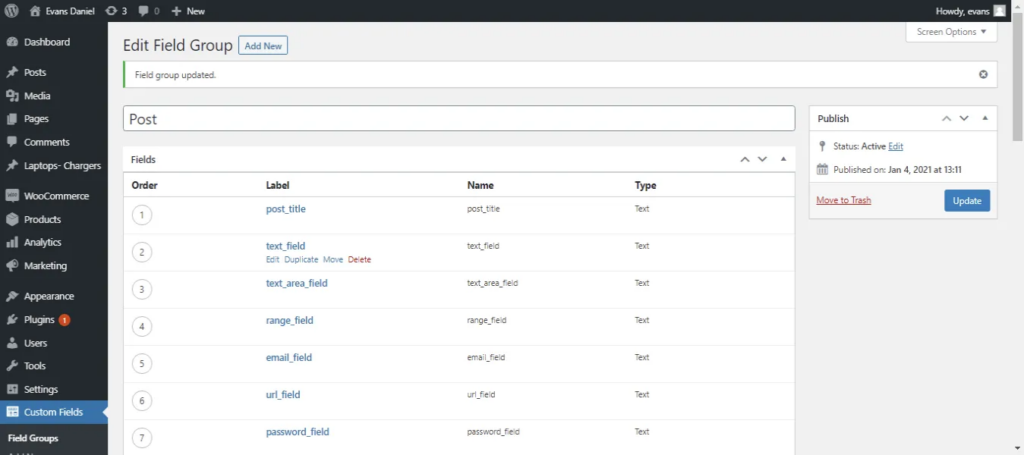
Now you can import the CSV file by following 4 simple steps, import or update the existing content on your WordPress website.
Step 1: Uploading the CSV file:
Upload your CSV in any of these 4 methods:
- A Upload from Desktop
- Upload from FTP / SFTP
- Upload from URL
- Choose File in the Server.
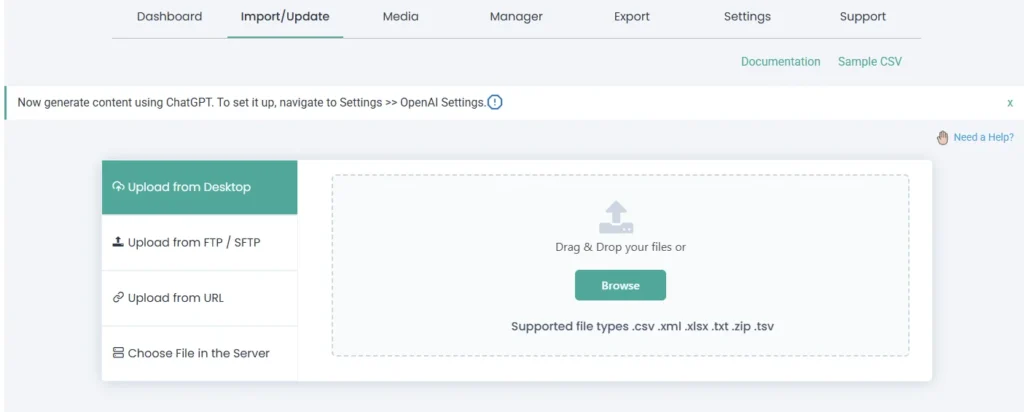
Then choose ‘New Items’ whether the CSV file contains new items to import or ‘Existing Items’ to update the website content.
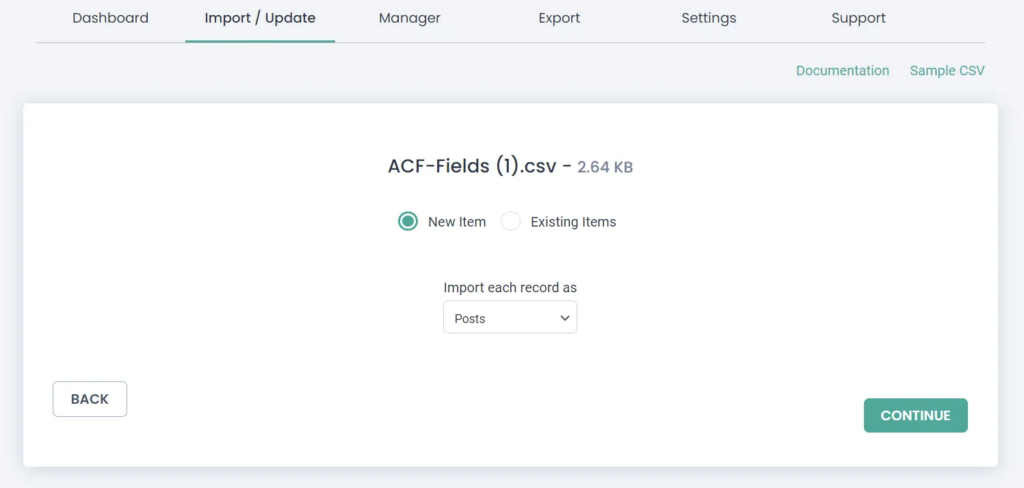
Step 2: Mapping the Header fields:
Relate the CSV headers with WordPress fields. You can use the ‘Advanced Mode’ with dropdown or simply use the ‘Drag & Drop’ mode to match the CSV headers with WordPress fields.
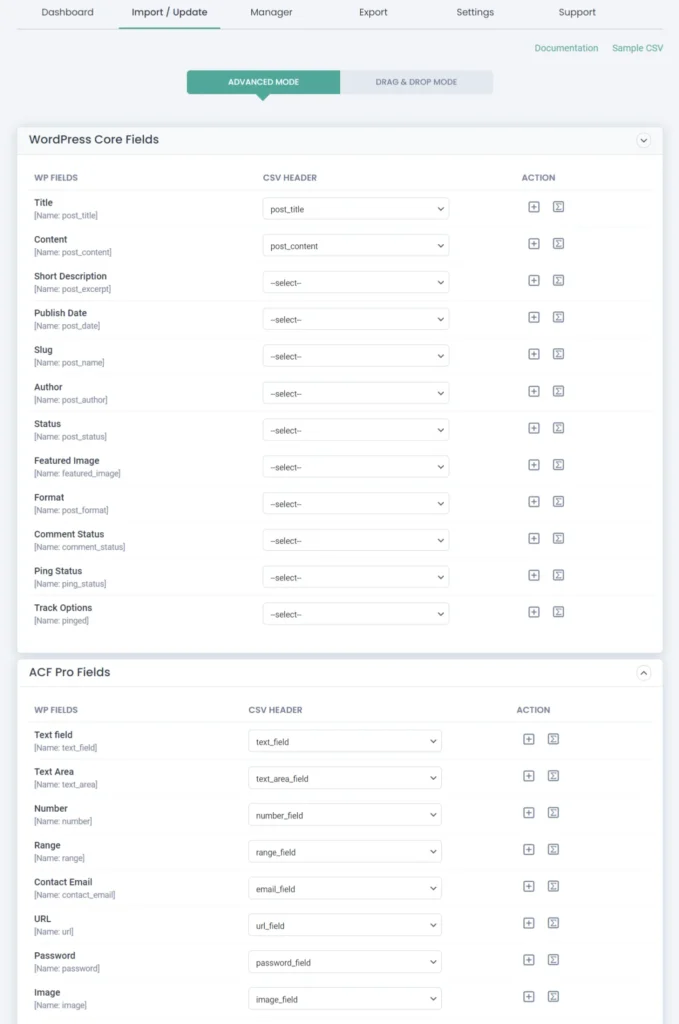
Once you map the fields, give a name in the ‘Save this mapping as’ field to use this mapping as a template later. Then proceed to next with Continue. Skip the Featured media handling section if you don’t upload any images.
Know More: Documentation for CSV importer

Step 3: Importing the CSV file:
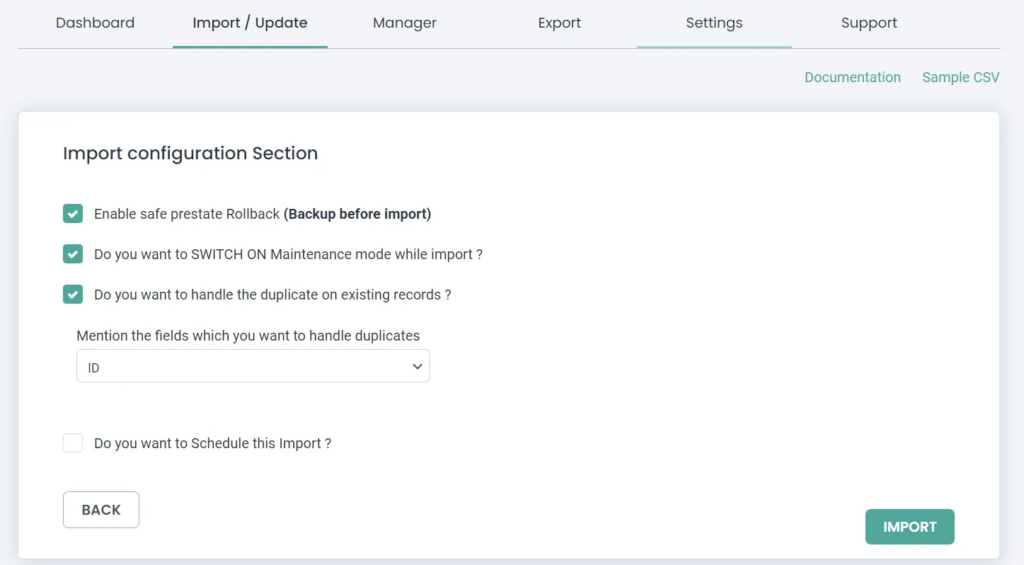
Now import the content to WordPress. To commit safe importing, check the ‘Enable safe import Rollback (Backup before import) to get a backup before you import and it also rolls back to the previous edition if an unexpected problem arises while importing.
Enable ‘Do you want to SWITCH ON Maintenance mode while importing?’ to notify your website visitors that the website is under maintenance. You also check for duplicates while you import using the option ‘Do you want to handle the duplicate on existing records?’ and choose the WordPress fields to check duplicates for those fields.
Now choose the ‘Import’ button to instant import the content on your WordPress website or schedule the post to get an update in the future, that is, to update content on the website at the specified date and time. The custom field ACF info will update successfully in WordPress from CSV.
Export ACF Fields in WordPress as CSV
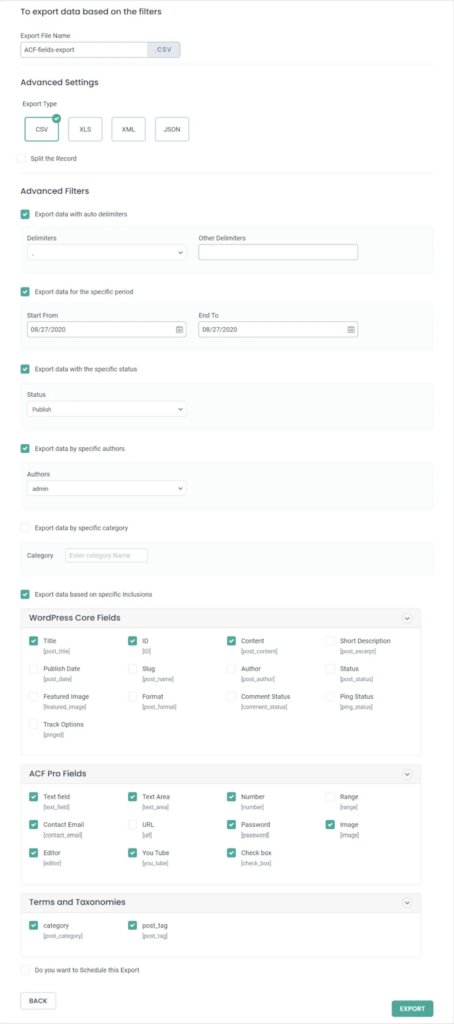
This section deals with the WordPress export posts with ACF fields. In just two straightforward steps, you can export WordPress ACF fields alongside Post, Page, or Custom Post content into a CSV file, ensuring a secure backup or facilitating migration. In Step One, select the Post Type, and in the second step, provide the export file name and choose ‘CSV’ as the export type.
The ‘Split the Record’ field mentions the records number to export one by one, if you give 100, the first 100 records will be exported in the first CSV and the next hundred records exported in the second CSV file, and so on.
You can export records with advanced filters like ‘Export with auto delimiters’, ‘Export data for the specific period’, ‘Export with specific status’, ‘Export data by specific author’, and ‘Export data based on specific inclusions’, this lets you export data with specific fields.
ACF export field groups
If you’re using Advanced Custom Fields (ACF-WP) in WordPress and you want to export ACF field groups for backup or migration purposes, ACF provides a built-in export feature. Here are the steps to export ACF field groups:
- In your WordPress Dashboard:
- Go to Custom Fields → Field Groups
- Select Field Groups:
- In the Field Groups screen, you’ll see a list of all your ACF field groups.
- Export Options:
- Navigate to Tools at the top of the menu and select the field groups you want to export.
- Now click on the Export file.
Now, you have an XML file that contains the exported ACF field groups. You can use this file for backup purposes or for importing these field groups into another WordPress installation.
If you need to import these field groups into another WordPress site, you can follow these steps:
- In your WordPress Dashboard on the target site:
- Go to “Custom Fields” > “Field Groups.”
- Import Field Groups:
- Navigate to tools. And browse the ACF files you would like to import. Then Click on the “Import File” option.
ACF will then import the field groups, and you should see them listed in the Field Groups screen.
This process makes it easy to move your ACF configurations between WordPress installations or to create backups of your ACF settings. Always ensure that both sites have the same version of ACF or compatible versions to avoid compatibility issues during import.
WP Ultimate CSV Importer vs WP All Import: Which Is Better for ACF Data?
Both plugins handle ACF imports, but they take different approaches and the differences matter depending on what your site actually needs. Here is a straightforward breakdown.
| Feature | WP Ultimate CSV Importer | WP All Import |
| File Format Support | CSV, XML, Excel, Google Sheets | CSV, XML only |
| ACF Field Type Coverage | All ACF field types including Repeater, Group, Flexible Content, Google Map | Core field types, advanced fields require add-ons |
| WooCommerce ACF Support | Full support out of the box | Requires separate WooCommerce add-on |
| Scheduled Imports | Built in, no extra setup | Available in Pro only |
| Bulk Update Existing Records | Yes, with duplicate handling | Yes |
| Rollback and Backup | Built in safe import with rollback | Not available natively |
| Field Mapping | Drag and drop and advanced mode | Drag and drop |
| Custom Post Type Support | Full support | Full support |
| Pricing | $299 one time | Starts at $99/year per site |
| ACF Field Group Export | Yes, full export with filters | Limited |
Where WP Ultimate CSV Importer Stands Out for ACF:
File Format Flexibility:
WP Ultimate CSV Importer accepts CSV, XML, Excel, and Google Sheets out of the box. If your data lives in a spreadsheet or a Google Sheet, you can import it directly without converting files first. WP All Import limits you to CSV and XML, which adds an extra step for teams working in Excel or Google Workspace.
Complete ACF Field Type Coverage:
Every ACF field type is supported natively, including the ones that trip up other tools. Repeater fields, Flexible Content fields, Group fields, and Google Map fields all import cleanly without needing a separate add-on or custom configuration. This matters when you are working with complex data structures that need to come through exactly as they were built.
Built-in Rollback Protection:
Every import can be run with automatic backup and rollback enabled. If something goes wrong mid-import, the plugin reverts your data to its previous state without you having to restore from a server backup. This is a feature most site owners only wish they had after something breaks.
Scheduled Imports Without Extra Cost:
Recurring imports are built into the core plugin. If you receive updated ACF data on a regular schedule, you can configure the importer to pull and process that data automatically at whatever interval your workflow requires. No additional plan or add-on needed.
One Time Pricing:
WP Ultimate CSV Importer is a one time purchase at $299 compared to WP All Import which runs on an annual per-site subscription. For agencies or developers managing multiple client sites, the cost difference adds up quickly over time.
Which One Should You Use?
If your workflow involves complex ACF field types, multiple file formats, or scheduled recurring imports, WP Ultimate CSV Importer is the more complete solution for ACF data management. It covers more ground natively, protects your data during imports, and costs less over time for multi-site use.
ACF Field Types Explained
- Text Field:
Single-line content. Use for short values like titles, names, or labels.
CSV format: WP Ultimate CSV Importer
- Text Area Field:
Multi-line paragraph content. Use for longer descriptions or body text.
CSV format: WordPress Ultimate CSV Importer is an import tool that allows you to import CSV/XML data into WordPress.
- Number Field:
Any numeric value. Decimals are accepted.
CSV format: 0123456789
- Range Field:
A numeric value within a defined minimum and maximum range.
CSV format: 99
- Email Field:
Must follow standard email format including @ and a dot.
CSV format: [email protected]
- URL Field:
A full web address including the protocol.
CSV format: https://www.smackcoders.com/wp-ultimate-csv-importer-pro.html
- Password:
Accepts any text value numeric, alphabetic, or special characters.
CSV format: TEST70#8
- Wysiwyg Editor:
Accepts rich text content. Provide the value as plain text or basic HTML in your CSV.
CSV format: WP Ultimate CSV Importer
9. Image:
Provide the URL of an externally hosted image or the attachment ID of an image already in your WordPress media library.
CSV format: https://dev.smackcoders.com/wp-content/uploads/2023/11/software-developments-services.webp
10. File:
Provide the attachment ID of a file already in your WordPress media library, or the full URL of an externally hosted file. Both local media library files and external URLs are supported.
CSV format (media library ID): 142
CSV format (external URL): https://dev.smackcoders.com/wp-content/uploads/2023/11/sample-file.pdf
11. oEmbed
Accepts a video or media URL from any oEmbed-supported provider such as YouTube or Vimeo.
CSV format: https://www.youtube.com/watch?v=6tdiOjw4EDk
12. Gallery Fields:
Provide image URLs or media library attachment IDs separated by commas for multiple images.
CSV format: https://dev.smackcoders.com/image1.webp, https://dev.smackcoders.com/image2.webp
13. Select:
Provide the value of the option you want selected. For multiple selections, separate values with a comma.
CSV format: Premium
CSV format (multiple): Custom Field,Premium
14. Checkbox:
Provide the checkbox values you want enabled, separated by commas.
CSV format: Custom Field Importer,Premium,WPML Importer
15. Radio Button:
Provide the single value you want selected.
CSV format: Premium
16. Button Group:
Provide the single button value you want selected.
CSV format: Premium
17. True/ False:
ACF expects a 1 for true and 0 for false. Do not use the words “true” or “false” as text strings, the field will not map correctly.
CSV format (true): 1
CSV format (false): 0
18. Link:
The Link field accepts three attributes: the URL, the link text (title), and the target. Provide each attribute as attribute_name=value and separate multiple attributes with a pipe | character.
CSV format: url=https://www.smackcoders.com|title=Visit Smackcoders|target=_blank
If you only need the URL without a title or target, you can provide the URL value on its own.
CSV format (URL only): https://www.smackcoders.com
19. Page Link:
Provide the full URL of the WordPress page you want to link to. For multiple pages, separate each URL with a comma.
CSV format (single): https://yoursite.com/about/
CSV format (multiple): https://yoursite.com/about/,https://yoursite.com/contact/
20. Post Object:
Provide the Post ID of the post you want to reference. For multiple post objects, separate IDs with a comma.
CSV format: 1,2,3
21. Taxonomy Field:
ACF WordPress taxonomy field can be created and assigned with the taxonomy values in comma(,) or pipeline(|) separation. If the value of the taxonomy doesn’t exist then the new taxonomy is created and assigned to the Post or Page.
CSV Format: To add tags CSV importer, Ultimate CSV importer provide values as csv importer, Ultimate CSV importer
22. Relationship Field:
Linking multiple Pages or Posts with advanced linking to another Post type can be done by relating to multiple post object data. You can mention the related Post or Page ID in comma(,) separation with the field name as the header in your CSV file to relate the CSV file with the created ACF field automatically. For example,
- Custom Field Importer
- Premium
- WPML importer
CSV Format: To relate Custom field importer and premium mention value as 1,2
23. Repeater Field:
Repeating a section with the same set of subfields in ACF repeater fields can be automated to insert the data in each field type. Mention the value in comma(,) separation or pipeline(|) separation if the inserted field type has multiple values.
For eg, if one of the field types is a checkbox and the field name is color, you can have the header as color to automap and the value as blue, black, red, or blue|black|red
24. User:
Mention your User ID. To assign multiple users to mention the ID in Comma(,) separation.
CSV Format:
To select 101, 110, and 201. Provide values as
101, 110, 201
25. Google Map:
Specify your exact geo-location with Geo Codes.
CSV Format:
Smackcoders Inc., Kattnayakan, Palayamkottai, Tirunelveli, Tamil Nadu, India|8.7149916|77.73236250000002.
26. Date Picker:
Mention the date value in the standard format. DD/MM/YYYY
CSV Format:
29/12/2020
27. Date Time Picker:
Specify the date(DD/MM/YYYY) and time(HH/MM/SS).
CSV Format:
29/12/2020 and 01:10:00
28. Color Picker:
Mention your colors in the Hex code.
CSV Format: #ffffff
Install WP Ultimate CSV Importer
Purchase the WP Ultimate CSV Importer plugin from Smackcoders. In your WordPress dashboard, go to Plugins → Add New → Upload Plugin. Select the downloaded file from your desktop, click Install Now, then Activate. Once active, the plugin appears in your left sidebar and you are ready to begin importing.

WP Ultimate CSV Importer Pro
Get Ultimate CSV/XML Importer to import data on WordPress faster, quicker and safer.
Frequently Asked Questions (FAQ)
1. What is Advanced Custom Fields?
Advanced Custom Fields is a WordPress plugin that gives you control over what data gets attached to your content. By default WordPress gives you a title, a content block, and not much else. ACF changes that. You can add text fields, dropdowns, image uploads, date pickers, repeatable rows, map coordinates, and more to any post, page, product, or custom post type you are working with. It is one of those plugins that quietly becomes essential the moment you start using it seriously.
2. How do I export Advanced Custom Fields data?
WP Ultimate CSV Importer handles this cleanly. Go to the Export tab, pick your content type, set CSV as your output format, and open the advanced filters to pull in your ACF fields. You can narrow things down by date range, author, post status, or specific field values so the export only contains what you actually need. The whole process takes a few minutes once you know where everything is.
3. Can I export ACF field groups on their own?
Yes and ACF makes this pretty simple. Inside your WordPress dashboard go to Custom Fields, then Field Groups, and click on Tools at the top of the screen. Select the field groups you want, hit Export File, and you get an XML file with your entire field group configuration inside it. That file can be imported into any other WordPress site running ACF, which makes it genuinely useful for moving setups between environments or keeping a clean backup of your configurations.
4. How do I export WooCommerce products with ACF fields?
Go to the Export tab inside WP Ultimate CSV Importer and select WooCommerce Products as your content type. Name your file, pick CSV, and before you run the export open the advanced filter and select your ACF fields from the ACF Fields Pro section. Your product data and custom field values come out together in one file. No separate exports, no manual merging afterward.
5. How do I update Advanced Custom Fields in bulk?
Start by making your changes directly inside your CSV file. Once that is ready, go to WP Ultimate CSV Importer and select Import/Update. Upload your file, choose the right content type, and on the mapping screen make sure you pick Existing Items so the plugin updates your current records instead of creating duplicates. Turn on duplicate handling, map your fields, and run it. Every record in the file gets updated in one go.
6. What is the ACF repeater field and how does it work?
The repeater field is basically a way to collect the same set of information multiple times within one post. Say you are building a team page and each person has a name, a photo, and a title. Instead of creating three separate fields and repeating them manually, you create one repeater with those three subfields and add as many rows as you need. When you import repeater data through WP Ultimate CSV Importer, use commas to separate values across subfields. If a subfield holds multiple values like a checkbox, switch to a pipe separator. So a color checkbox would look like blue|black|red in your CSV.
7. What happens when two ACF field groups share the same meta key?
This one catches people off guard because WordPress does not warn you when it happens. Every field in wp_postmeta needs a unique key per post. When two ACF field groups use the same meta key, the second one to save simply overwrites the first. You lose data silently with no error, no notice, nothing. If your fields are pulling in blank values or saving inconsistently, duplicate meta keys are one of the first things worth checking. Go through your field groups and make sure every field key is unique. Catching this before you run a bulk import saves a lot of cleanup work later.
Wrapping Up:
Managing ACF data at scale does not have to be a slow, manual process. Once you have the right import and export workflow in place, moving data in and out of WordPress becomes something you can do in minutes rather than hours, whether you are migrating a site, updating hundreds of custom field values, or keeping a clean backup of your field group configurations.
The steps in this guide cover everything you need to get that workflow running. If you hit a snag along the way or have questions about a specific field type or import scenario, the WP Ultimate CSV Importer documentation goes deeper on every feature and our support team is available at support@smackcoders.com if you need a hand directly.