
Table of Contents
Moving a single post, page, or product between WordPress sites should not require you to export your entire database or manually recreate content from scratch. Whether you are pushing a post from staging to production, backing up a specific page before making changes, or transferring a WooCommerce product to another store, there is a faster way to handle it.
WP Ultimate CSV Importer Pro lets you export any individual post, page, or custom post type directly from the WordPress editor view as a CSV file and import it into any other WordPress site in seconds. No bulk exports, no database tools, no technical setup. Just open the post you need, export it, and bring it into the destination site through the same interface.
This guide covers the complete process. How to export a single WordPress post or page as a CSV, how to import it into another WordPress installation, how the same workflow applies to WooCommerce products, and what happens to your custom fields, SEO metadata, and images along the way.
Exciting Enhancements in WP Ultimate CSV Importer Pro 8.1
Our latest release introduces several new features and improvements to help you manage your WordPress content more effectively:
- Single Record CSV Export and Import: Export and import individual posts, pages, or custom posts—including core, meta, and term field data—directly from the Create/Edit view in WordPress. We’ll discuss this feature in more detail.
- JetBooking WooCommerce Integration Support: Import and export bookings seamlessly.
- JetReviews Support: Import and export JetReviews data effortlessly.
- Tiered Price Table for WooCommerce Support: Handle complex WooCommerce pricing structures with ease.
- Enhanced WooCommerce Orders Support: Import and export WooCommerce orders, including personalized product details using the Woo Extra Product Options and Product Addons for WooCommerce – Custom Fields plugin.
These enhancements offer greater flexibility, giving you the tools needed to manage your WordPress data with precision.
Why Do You Need to Export and Import a Single Post/Page/Custom Post Record?
Exporting and importing single records can save time and effort, especially for site administrators who want to:
- Migrate a single post from a staging site to a live production site.
- Back up specific content without exporting the entire database.
- Edit post data offline in a CSV file and re-import the updated version.
- Transfer individual WooCommerce products, custom posts, or pages without hassle.
Key Benefits of This Feature
The Single Post/Page/Custom Post Record Export and Import Feature in WP Ultimate CSV Importer offers several advantages:
Simplicity: Export and import directly from the WordPress Create or Edit view – no need to navigate through the plugin interface.
Efficiency: Migrate or back up individual posts without exporting the entire site’s data.
Compatibility: Works seamlessly with Posts, Pages, Custom Post Types, and WooCommerce Products.
Data Integrity: Ensures that all fields are preserved during export and import, maintaining the accuracy of your content.
Offline Editing: Update post data offline in the CSV file and re-import the changes with ease.
Key Features of Single post CSV Import & Export
- Effortless Data Migration: Quickly migrate posts, pages, custom posts, or WooCommerce products between WordPress environments whether from a development site to a live site or for staging purposes.
- Export Individual Posts and Pages: Save specific posts, pages, or products as standalone CSV files without exporting your entire content database.
- Direct Import Functionality: Import content using these exported CSV files into your WordPress website seamlessly.
- Preserve Critical Data: Export custom fields, SEO metadata, and other associated data effortlessly.
Let’s dive into how this feature works with WP Ultimate CSV Importer.
How to Export WordPress Posts to CSV:
If you need your WordPress posts in a spreadsheet you can work with outside the dashboard, the fastest route is through WP Ultimate CSV Importer. You get a properly structured CSV with every field included, ready to edit, back up, or drop into another site.
Exporting Multiple Posts:
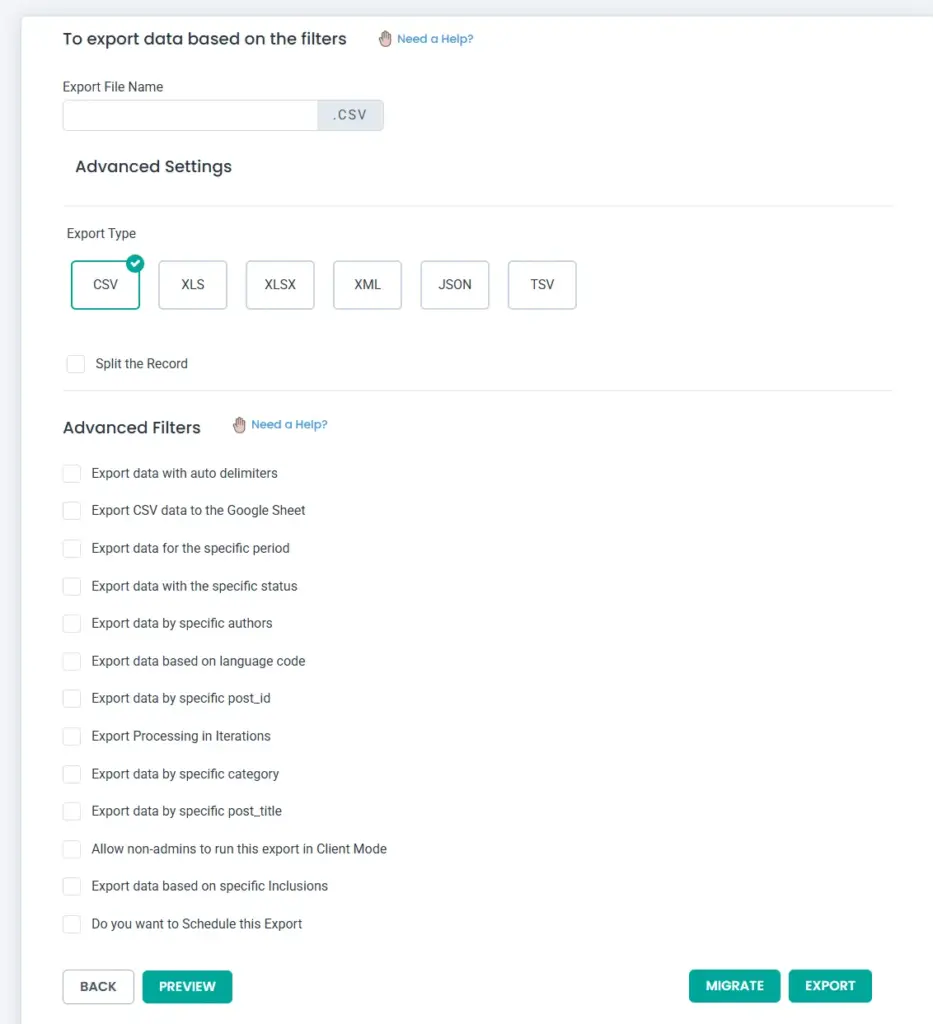
Go to WP Ultimate CSV Importer in your dashboard and open the Export tab. Pick Posts as your content type, give the file a name, and select CSV as the format.
Before you hit Export, check the advanced filter options. This is where most people save themselves a lot of cleanup work later. You can narrow the export down to a specific date range, post status, author, or category so the file only contains exactly what you need rather than everything on the site.
Click Export and the file downloads to your computer with every post field included. Title, content, slug, status, categories, tags, custom fields, SEO metadata, and featured image references all come through in the same file.
Exporting a Single Post/Page/Custom Post
The Single post CSV Export feature allows you to download selected content as a CSV file in just a click. To get started, ensure you have the WP Ultimate CSV Importer plugin installed and activated. Once you’re set, follow these steps to export a single post:
1. Navigate to the desired Post Type
Log in to your WordPress dashboard and visit the post type you want to export; this could be Posts, Pages, Custom Posts, or even WooCommerce Products. Open the post you wish to export by clicking on it to access the Edit View.
2. Locate the Import/Export Menu
In the Edit View of the record, look for the Import/Export icon. If WP Ultimate CSV Importer is installed, this icon will appear in the WordPress menu bar. Click the icon to open the Import/Export Sidebar.
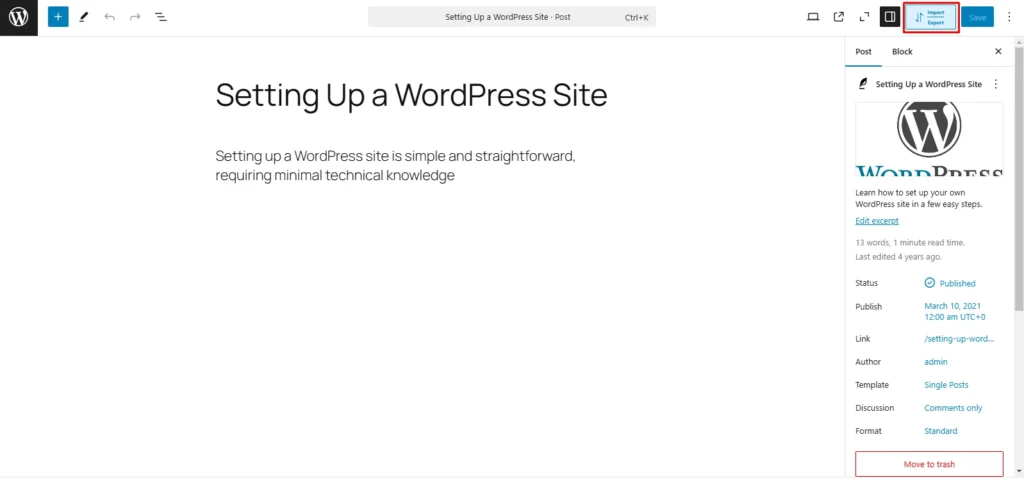
3. Export the Post as a CSV File
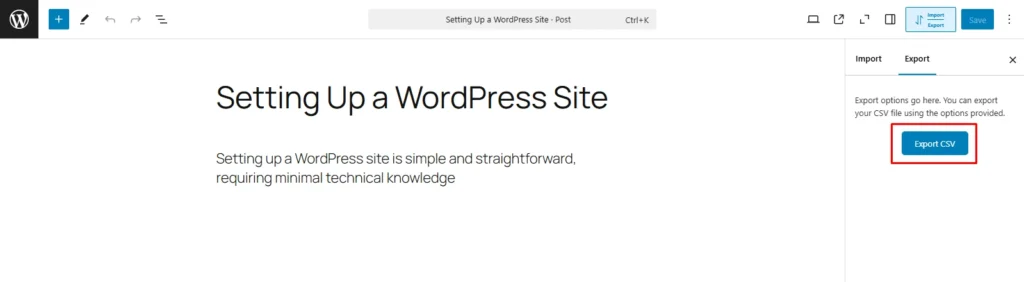
Switch to the Export tab in the sidebar. Click the Export CSV button. Download the post data by providing a name for the CSV file to your computer.
4. Review the Exported CSV File
Open the file to ensure all fields and their values have been accurately exported. Avoid modifying the headers in the CSV file. The headers are formatted specifically for the import process. However, you can safely update field values, such as the post content or title, before importing. With the post exported, you’re ready to move on to the next step: importing.
Importing a Single Post
Once you’ve exported a post as a CSV file, importing it into another WordPress instance is just as straightforward. Here’s how:
1. Navigate to the Target Site
Log in to the WordPress dashboard of the site where you want to import the post. Go to the Add New view for the same post type (e.g., Posts, Pages, or Custom Posts).
2. Access the Import/Export Sidebar
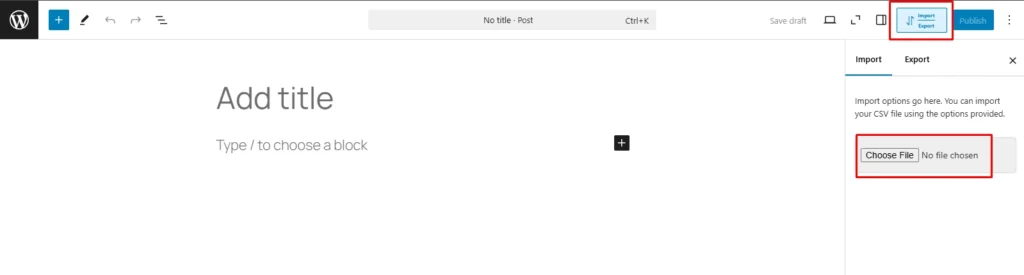
Click the Import/Export icon in the Add New view to open the sidebar. By default, you’ll be on the Import tab.
3. Import the CSV File
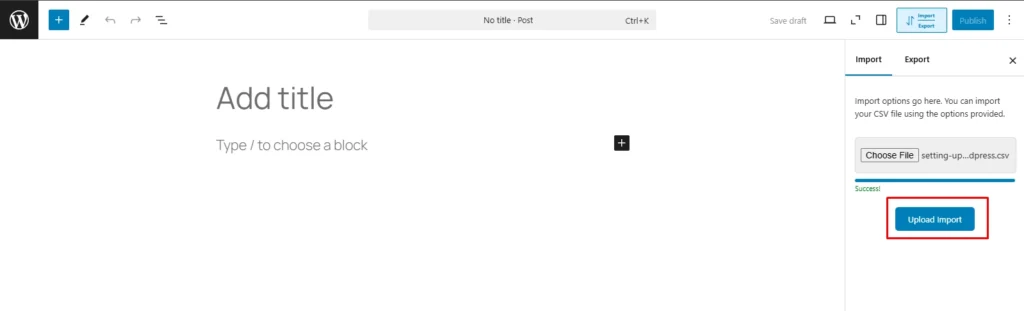
Click the Choose File button and select the CSV file you exported earlier. Click Open to upload the file.
Hit the Upload Import button to start the import process.
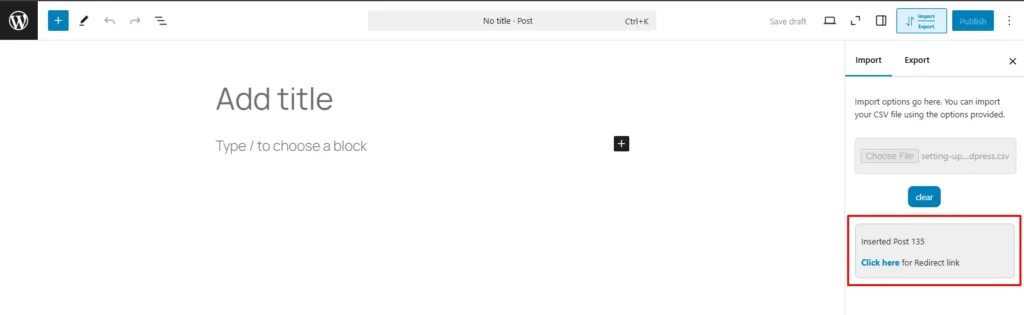
4. Confirm the Import
Within seconds, the import process will complete and a success message will appear, showing the newly imported post’s ID and a Click Here button. Use the Click Here button to view the imported post and verify that all fields and values have been successfully imported.
To know how to export or import a WooCommerce Product, refer to our documentation here about Export Import WordPress Single Page, Post, Custom Post, & WooCommerce Product as CSV.
Frequently Asked Questions
1. Can I export a single WordPress post without a plugin?
Not really. The built-in export tool under Tools then Export works at the post type level, not the individual post level. You can filter by author or date range but you cannot point at one specific post and download just that. If a single post is what you need, a plugin is the practical answer. WP Ultimate CSV Importer puts an export button right inside the post editor so you are not wading through settings to get there.
2. How do I export WordPress posts to CSV?
Open WP Ultimate CSV Importer and go to the Export tab. Select Posts, name your file, pick CSV, and run it. The advanced filters are worth a look before you do because they let you pull only what you actually need rather than the entire post archive. If it is just one post you are after, open it in the editor, hit the Import/Export icon at the top, and export it straight from there.
3. How do I transfer posts from one WordPress site to another?
Export the post as a CSV from the source site. On the destination site, open a new post in the editor, click the Import/Export icon, and upload the file from the Import tab. Everything comes across, content, metadata, custom fields, categories. It is genuinely quicker than it sounds once you have been through it once.
4. Does this work with WooCommerce products?
It does. The process is identical to exporting a post or page. Open the product in edit view, export it through the Import/Export sidebar, and import it on the destination site the same way. Price, stock, SKU, and any custom fields all travel with the file.
5. What happens to images when I export a post?
The CSV carries the image URLs, not the actual files. When you import on the other end,WP Ultimate CSV Importer fetches those images from the source URL and pulls them into the media library on the destination site. The one thing to keep in mind is that the source site needs to be live and accessible when you run the import, otherwise there is nothing for the plugin to fetch from.
Wrapping Up
Exporting and importing individual posts, pages, and products does not have to mean wrestling with full database exports or copying content by hand. With the single record export feature in WP Ultimate CSV Importer Pro, the whole thing happens from inside the WordPress editor and takes about as long as it should.
Whether you are moving content between staging and production, keeping offline backups of specific posts, or transferring products to a new store, the workflow stays the same every time. Export, edit if needed, import. That is genuinely it.
Got questions about a specific content type or running into something unexpected during an import? Reach out at [email protected] and we will help you work through it.